How to reduce kitchen food waste with accurate recipes and smarter ordering
Published 14 October 2026 · 8 min read
By Tara Beattie, co-founder of Prepsheets, with 25+ years in hospitality.
Reducing kitchen food waste starts with an accurate recipe. When you know what goes into each dish, what the recipe yields and how much makes one customer portion, you can plan production more precisely, avoid making too much and order ingredients against actual requirements.
Prepsheets connects that whole process: accurate recipes → consistent portions → planned production → stock checks → supplier orders. It helps kitchens build a reliable recipe foundation, then use that same information to control what they prepare and purchase.
Without that connection, ordering can become a habit: buy the same ingredients every week, prepare familiar batch sizes and hope they match demand. Surplus ingredients can accumulate in storage, while oversized batches and inconsistent portions create further opportunities for food waste.
Working it out manually means scaling recipes, adding together ingredients across different dishes, checking stock and separating requirements by supplier. Each calculation takes time and creates another opportunity to miss or duplicate a quantity.
With Prepsheets, you start with your saved recipes and choose how many portions – or what weight – you intend to produce. The Preplist Generator calculates the ingredient requirements, deducts the stock you enter and shows what remains to order, grouped by supplier.
The aim is practical: make what you plan to serve, use what you already have and buy what you still need. Accurate recipes and realistic demand estimates give that process its foundation; Prepsheets carries the information through from recipe to purchasing.
In this walkthrough, we use 16 recipes and 78 ingredient lines to show how the process supports kitchen stock control, helps prevent overordering and overproduction, and keeps avoidable food waste to a minimum.
Start with what you plan to make
Most kitchen ordering starts with a production decision: what are we making, and how much do we need?
That might be Monday’s café counter, three soups across the week, a catering event or a production run for grab-and-go food. The planning period is yours to choose. A weekly list does not mean everything should be cooked on Monday: production dates still need to reflect demand, storage space and your food safety procedures.
In Prepsheets, open Ordering Intelligence and select the recipes in the Preplist Generator.
For this example, we selected 16 recipes, including:
- Broccoli, flageolet bean and Parmesan soup.
- Carrot, coconut and coriander soup.
- Cauliflower and cannellini bean soup with rosemary.
- Breakfast, brie, ham and cheese, ploughman’s, and tuna mayonnaise sandwiches.
- A Caesar salad wrap, Asian duck salad and chicken salad.
- Lemon drizzle cake, chocolate brownie and two muffin recipes.
This is an illustrative production plan. The quantities were chosen to demonstrate the process, rather than forecast sales for a particular kitchen.
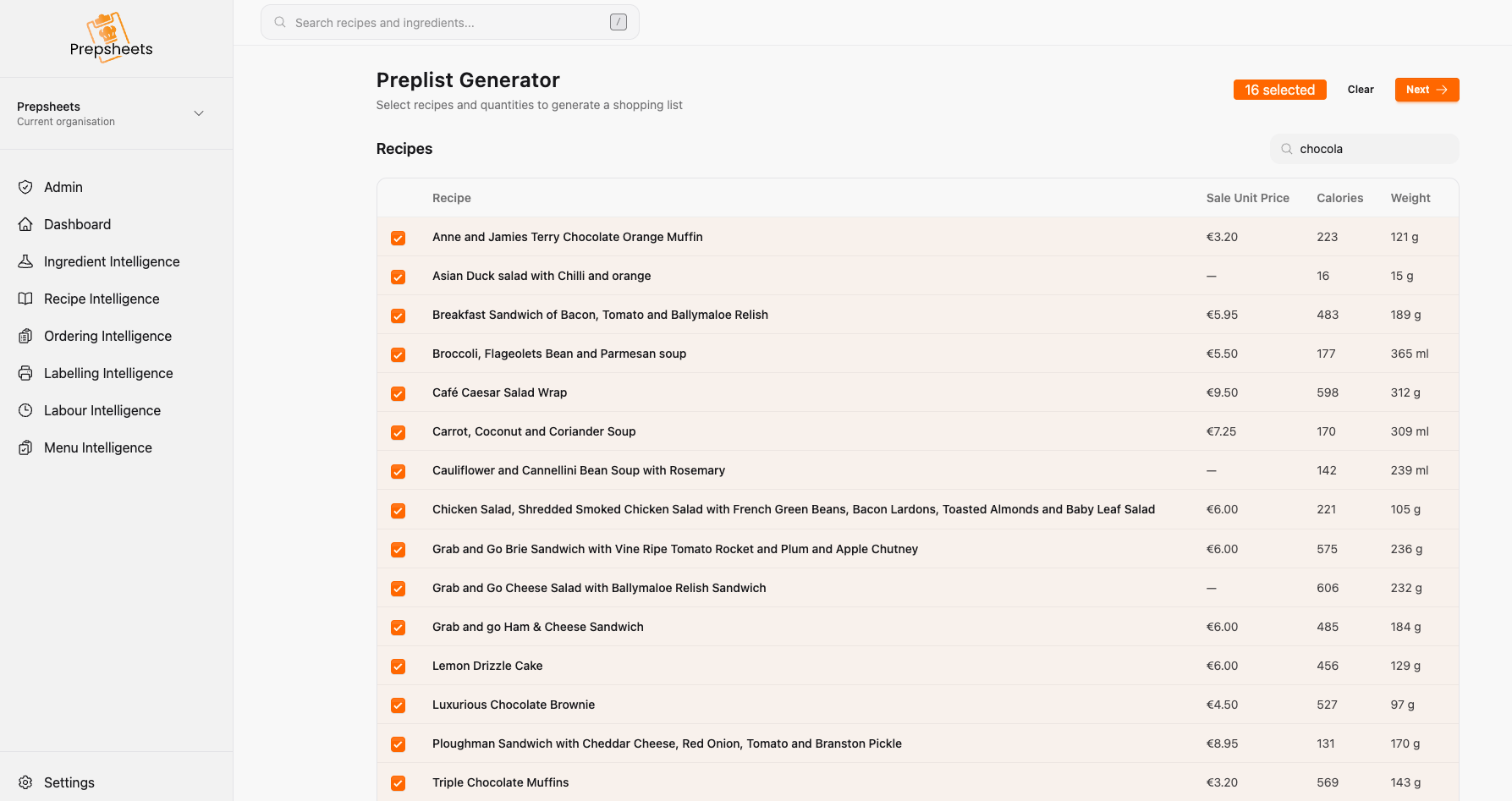
Choose the recipes you plan to make for your service, event or production period.
Set quantities by portions or weight
Click Next to set the quantity required for each recipe. You can choose portions or weight, depending on how you plan that product.
In this demonstration, we used portions. A few examples from the selected recipes are:
| Recipe | Planned portions |
|---|---|
| Breakfast sandwich | 30 |
| Broccoli, flageolet bean and Parmesan soup | 40 |
| Carrot, coconut and coriander soup | 26 |
| Cauliflower and cannellini bean soup | 37 |
| Lemon drizzle cake | 25 |
| Triple chocolate muffins | 55 |
| Tuna mayonnaise sandwich | 55 |
The software scales the ingredients using the quantities recorded in each recipe. This is why your starting recipe matters: check its ingredient amounts, units and portion yield before using it for production planning.
Read our guide to building and costing a recipe if you need to get that foundation in place first.
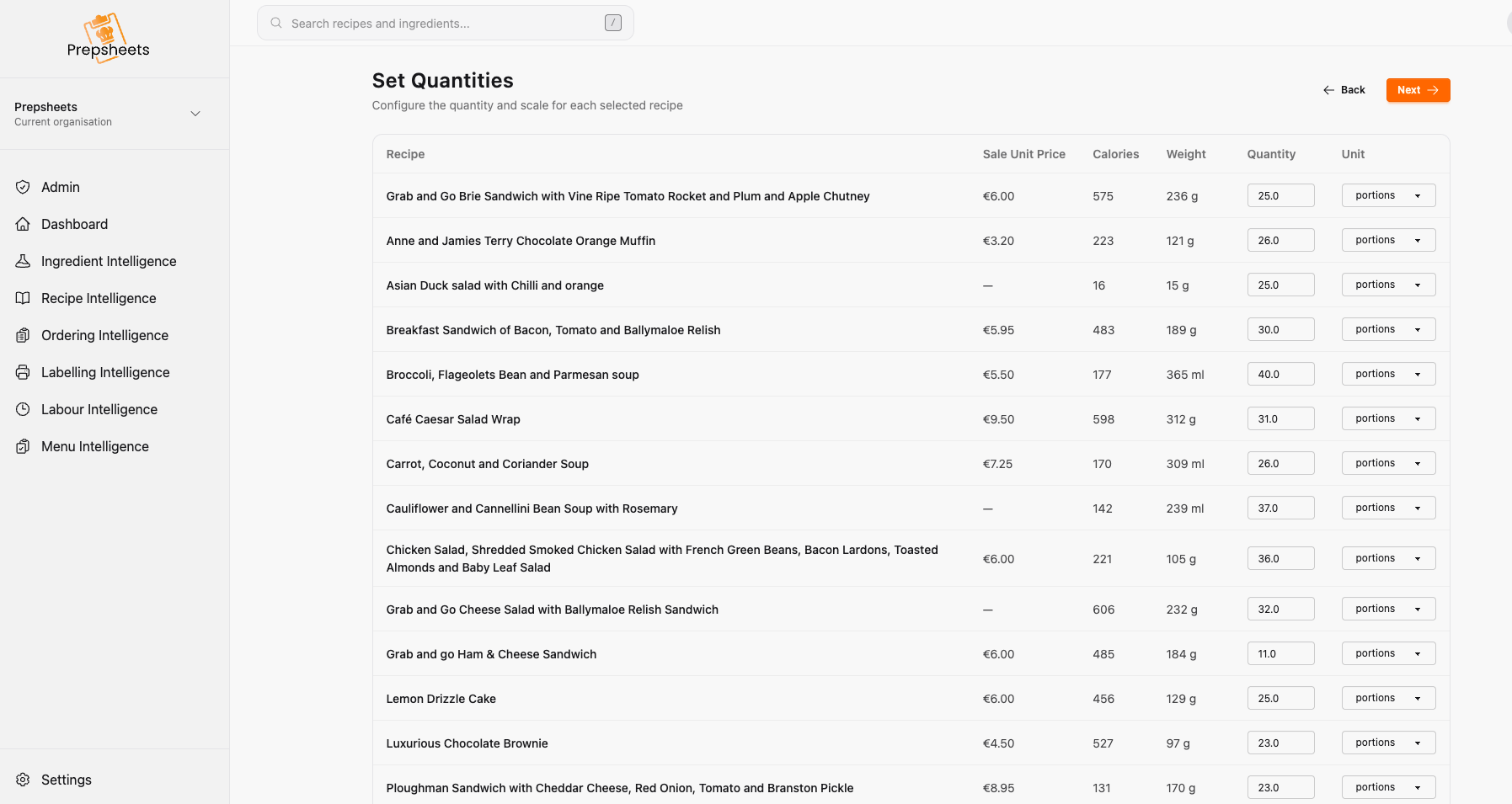
Set a different production quantity for each recipe. This example uses portions; weight is also available.
Turn the production plan into ingredient requirements
Click Next again. Prepsheets calculates the ingredient requirements across the selected recipes and presents them grouped by supplier.
The demonstration generates 78 ingredient lines from 16 recipes. Each supplier section shows:
- Ingredient name.
- Supplier product code.
- Required quantity.
- Unit, such as grams, millilitres or units.
- Stock on hand.
- Quantity to order.
That supplier connection is useful when a kitchen buys similar ingredients from different sources. You need to know which product the recipe uses and who supplies it, rather than work from an ambiguous note such as “cheese” or “flour.”
The suppliers shown here belong to our internal demonstration account. Your list uses the supplier and ingredient records associated with your own recipes, whether your kitchen is in Ireland, the UK, elsewhere in Europe or further afield.
Only order what you need: deduct stock before purchasing
The amount needed for production is not always the amount you need to buy.
Use In Stock to enter the usable quantity already available, in the unit shown on that row. Prepsheets recalculates To Order.
These figures come directly from the demonstration:
| Ingredient | Required | In stock | To order |
|---|---|---|---|
| Bacon lardons | 360 g | 200 g | 160 g |
| Crispy streaky bacon | 2,730 g | 1,000 g | 1,730 g |
| Baking powder | 9.19 g | 50 g | 0 g |
| Country relish | 1,220 g | 200 g | 1,020 g |
The calculation is straightforward:
Quantity to order = required quantity minus usable stock, with a minimum of zero.
If you leave stock at zero, no stock is deducted and the full requirement remains in To Order. If you already have enough, the order quantity falls to zero.
Count stock that is actually available for this production run. Ingredients reserved for another event, expired products or stock that cannot be used should not reduce this order.
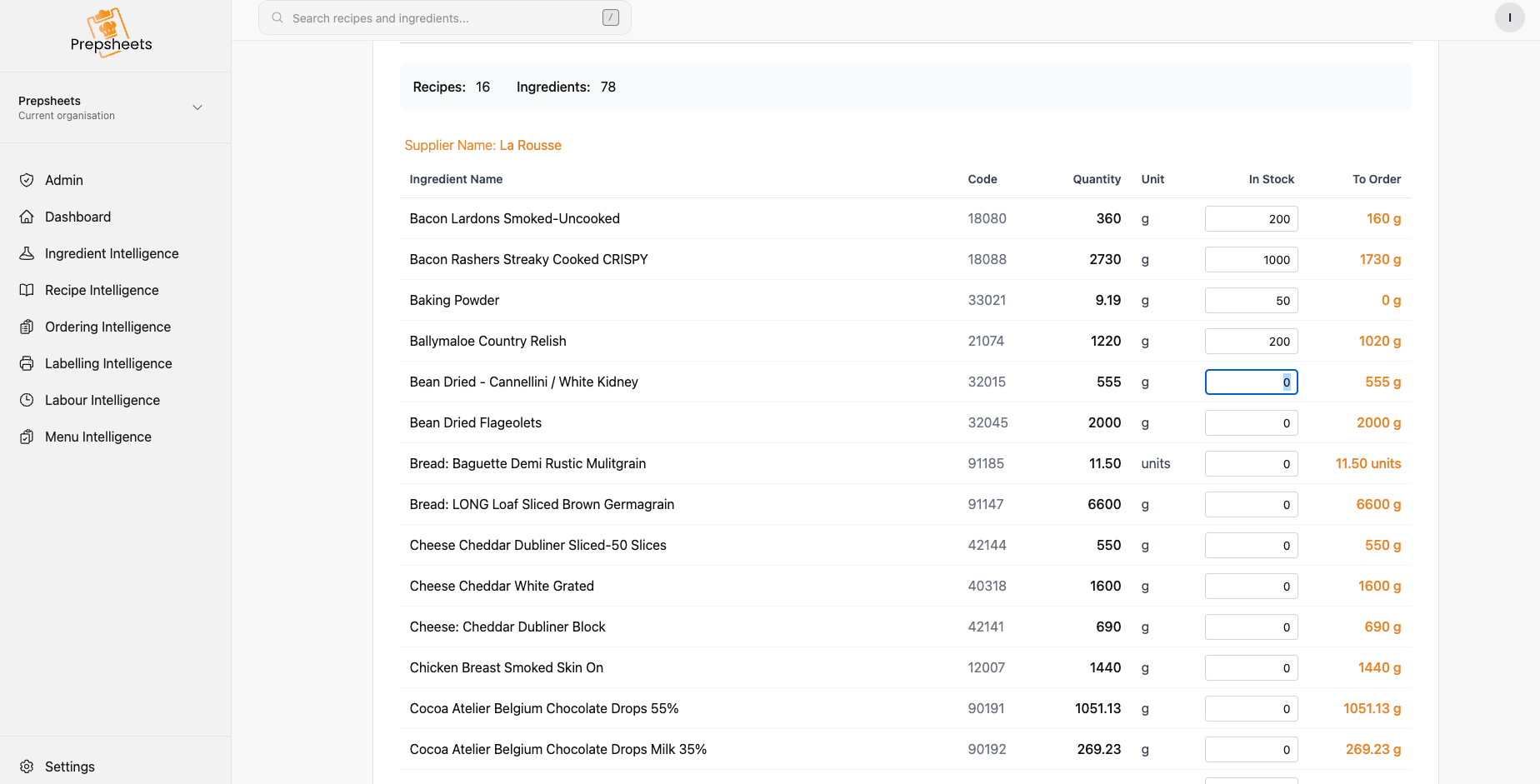
Entering stock reduces the purchase requirement. Baking powder shows zero to order because the available stock exceeds the amount needed.
Connect your stock system where data sharing is available
You do not need a separate stock-control system to use Preplists: stock quantities can be entered manually.
If you already use one, Prepsheets can connect to systems that allow the relevant data to be shared through an API or another supported connection. Bringing stock information into the process can reduce the need to re-enter it manually.
The same principle applies to EPoS/POS, ordering and other hospitality platforms: the connection depends on the other system’s access, available data and configuration. It is worth checking your particular platform with us before assuming an integration is already switched on.
See how Prepsheets connects with other kitchen systems.
Review the list, then print it
Once you have checked the requirements and entered stock, select Print PrepList to print or save the generated list as a PDF.
View the example prep list (PDF, 13 pages). This is the actual output from our demonstration, with sample quantities and supplier records. It illustrates the format rather than serving as a recommended order for another kitchen.
The supplier sections give the person placing orders a clear breakdown of what is required. Before purchasing, check pack sizes, minimum order quantities and delivery dates. A calculated requirement of 160 g does not necessarily mean your supplier sells a 160 g pack.
The printed output is an ingredient purchasing list. Your team will still need its production schedule, recipe methods and responsibilities for preparing the food.
Reduce overordering and overproduction with a connected process
Keeping recipes, portion sizes and ordering connected helps kitchens control stock and reduce avoidable food waste. The useful part is the connection between decisions: choose what to make, set how much, calculate the ingredients and subtract what you already have.
When your production quantities change, update the plan and generate the list again. You can review the revised requirements instead of rebuilding a supplier shopping list recipe by recipe.
Preplists is part of Prepsheets kitchen software. It turns the recipe information your team already maintains into a practical starting point for production purchasing.
Want to see it with your menu? Grab a time with Brian, and we can walk through your recipes, suppliers and existing systems.