Help Centre › Ingredients
Bulk Upload Local Supplier Ingredients by CSV
You can add a whole local supplier's range in one go. Where managed suppliers only need product codes and prices, local suppliers use the Full Import Template — you provide the full details yourself (codes, short names, units, weights, prices, allergens and nutrition), then upload the CSV and every ingredient imports at once.
Step 1: Open Bulk Import and create your supplier
- Go to Ingredients and click Upload.
- In Choose a supplier, type your local supplier's name — here, JJ Darboven, a coffee supplier. As it's not in the managed database, click create.
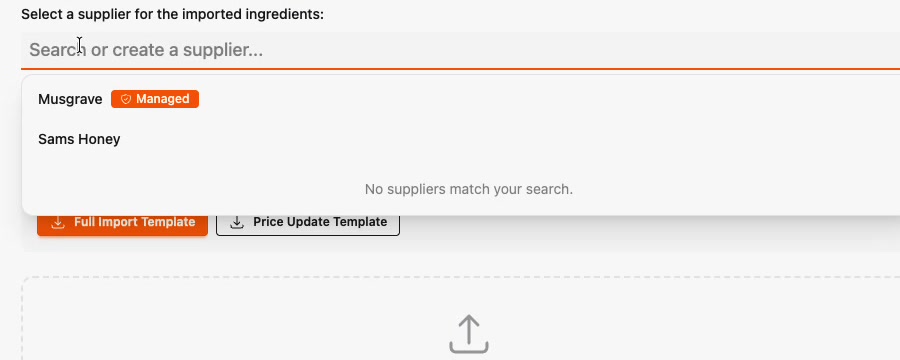
Prepsheets confirms "Supplier 'JJ Darboven' created" and sets it as the supplier for this import.
Step 2: Download the Full Import Template
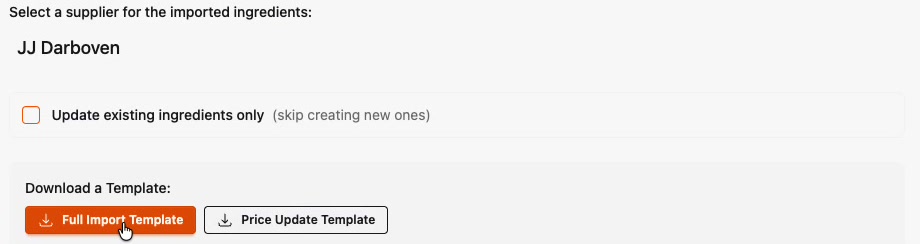
Click Full Import Template to download the spreadsheet. This is the template for non-managed suppliers — because Prepsheets can't pull data from the managed database, it carries every field you'll need.
Open the file and start at cell A1 — Row 1 is the header row, and its column names are how Prepsheets reads your data. Fill your products in from Row 2 down.

The columns include Product Code, Supplier Product Description, Ingredient Short Name, Measure Unit, Purchase Weight, Price, an Allergens Verified flag, a column for each allergen, then the nutrition values and the product's EAN code (the international barcode that identifies the product).
Step 3: Fill in the template
Complete one row per product using the information your supplier gives you. Here's a finished JJ Darboven sheet — eight coffee products, ready to upload:

- Product Code — the code your supplier uses.
- Supplier Product Description — the full product name from the supplier.
- Ingredient Short Name — what prints on your label instead of the full name. Monin Irish Cream Syrup becomes simply Irish Cream Syrup, so labels read cleanly.
- Measure Unit, Purchase Weight, Price — grams or millilitres, the pack weight, and what you pay.
- Allergens — in each allergen column, put Y (yes) if the product contains that allergen or N (no) if it doesn't. Then set the Allergens Verified flag to Yes once you've confirmed them (or No if you still need to check).
- Nutrition & EAN code — add the nutrient values, and the product's EAN code if you have it, plus any sub-ingredients.
Step 4: Upload and preview
Back on the Bulk Import screen, drag your CSV in (or use Choose CSV File), then click Preview Import.

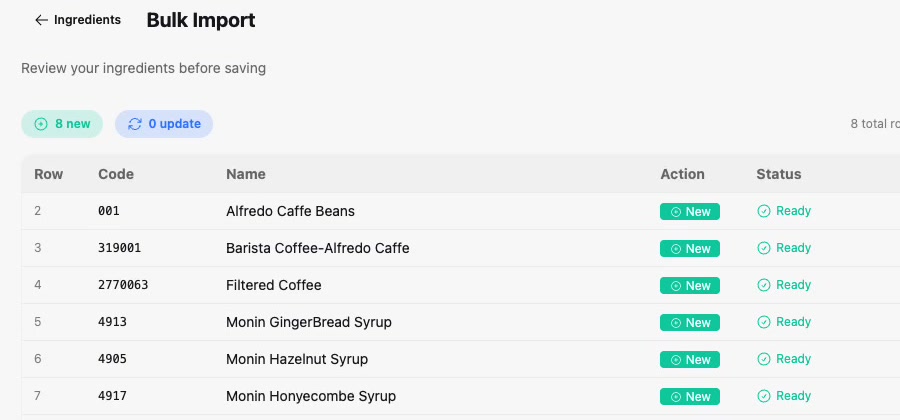
Prepsheets shows the rows it's about to create — here, 8 new ingredients, all marked Ready:
Step 5: Save — a whole supplier in seconds
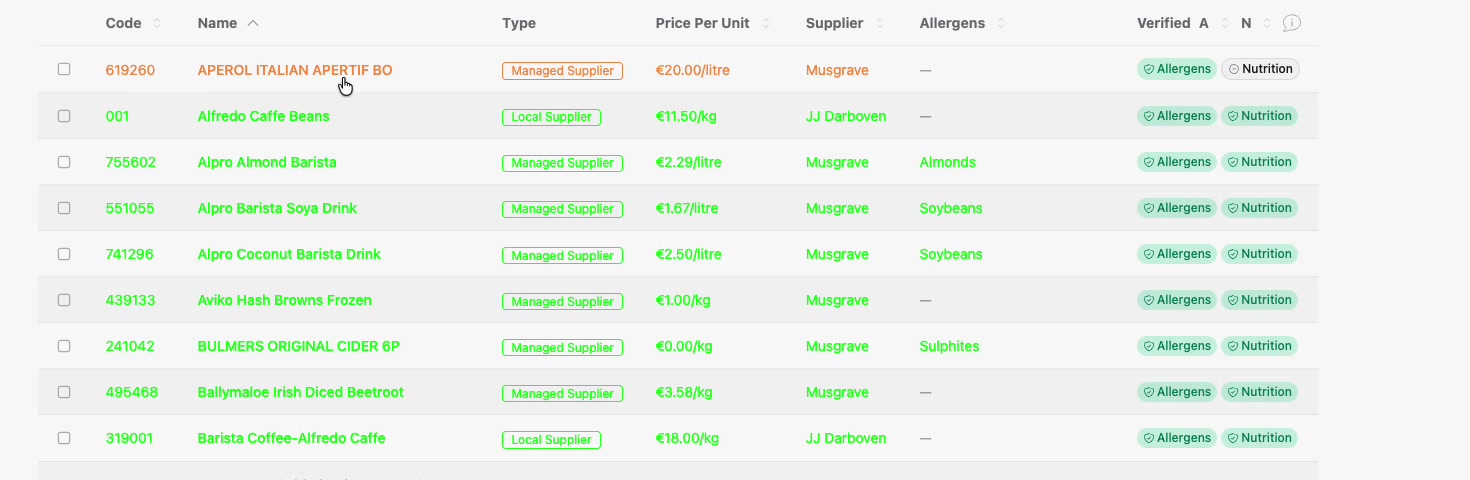
Click Save ingredients. That's eight ingredients added in seconds once the file was ready. They now sit in your Ingredients list marked Local Supplier under JJ Darboven, right alongside your managed ones:
With three suppliers and a full ingredient list in place — managed and local — you're ready to start building recipes.