Help Centre › Recipes
Create & Cost Your First Recipe
Once your ingredients are in, building a recipe is fast — and as you go, Prepsheets costs it, counts the calories, works out your portion size and flags the allergens automatically. That's the recipe intelligence at the heart of Prepsheets: every recipe hands you its cost, nutrition, portion weight and allergens without you working any of it out by hand. This guide builds a simple "Hot and Spicy Breakfast" sandwich from scratch and prices it for a healthy margin.
Step 1: Create the recipe
- Go to Recipes and click Create a recipe.
- Give it a name — here, Hot and Spicy Breakfast.
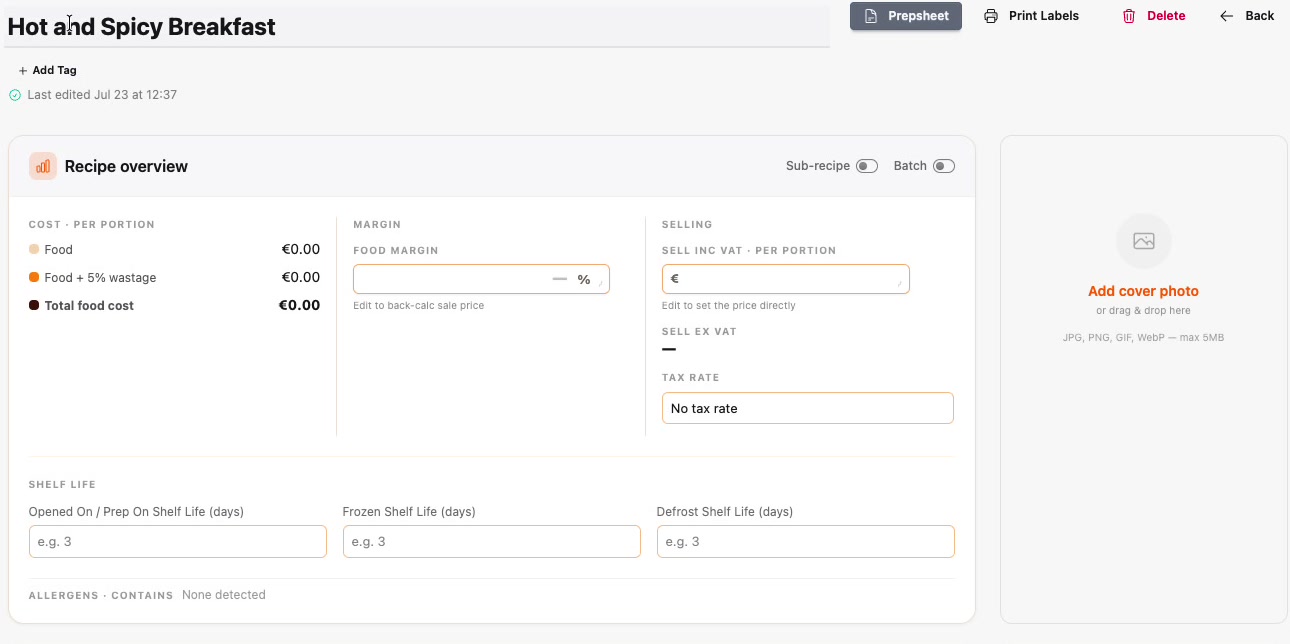
The recipe is created with no data yet. Everything fills in as you add ingredients.
Step 2: Add your ingredients
Click + Add Ingredient and search your database. Type bread and Prepsheets shows every match, cheapest priced first.
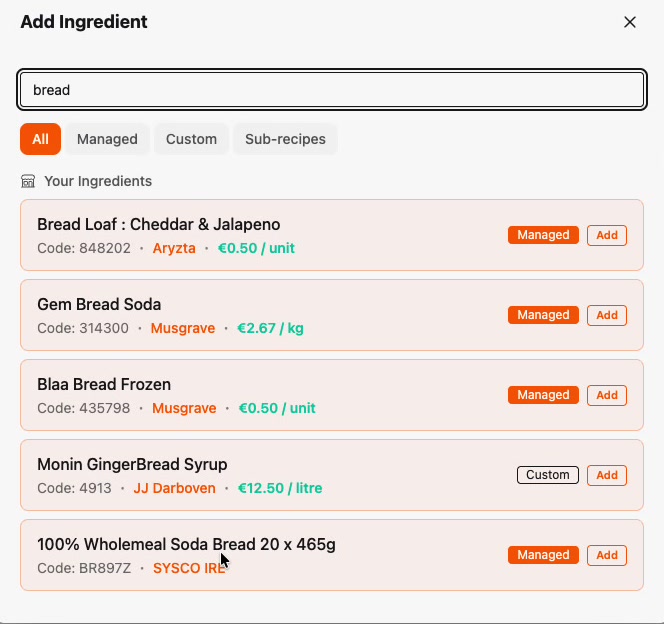
Click Add on each one you need — bread, butter, sausages, bacon. Don't worry about the order; just throw them in. They drop straight into the recipe.
Step 3: Build it the way you cook it
Here's a lovely touch: you can arrange the recipe to match how you actually make the dish. Add a section with Add Section — for a sandwich that might be Toast, Slather and Fill — then drag and drop each ingredient into the right section using the handle on the left of its row. The ingredients you threw in in any old order become a clean, cook-along recipe.
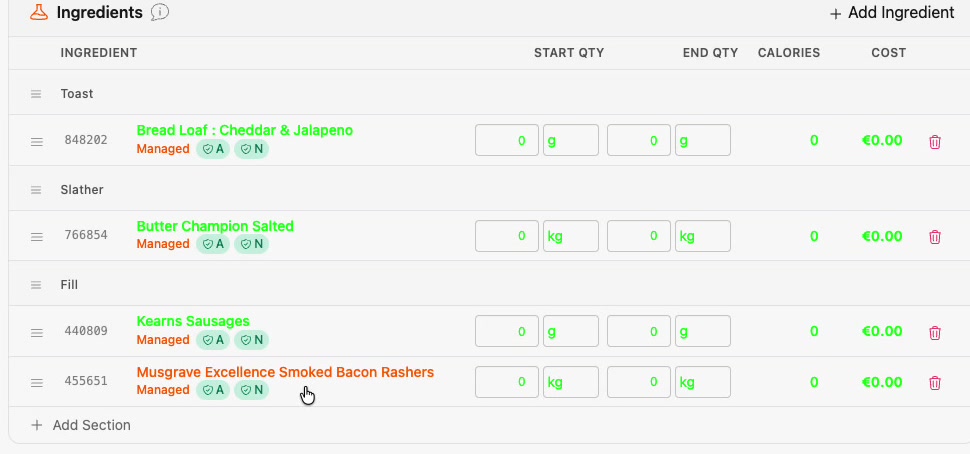
Step 4: Set the quantities
Enter how much of each ingredient you use. As soon as you do, Prepsheets fills in the calories and cost per line, and the Nutrition panel builds a full per-serving breakdown.
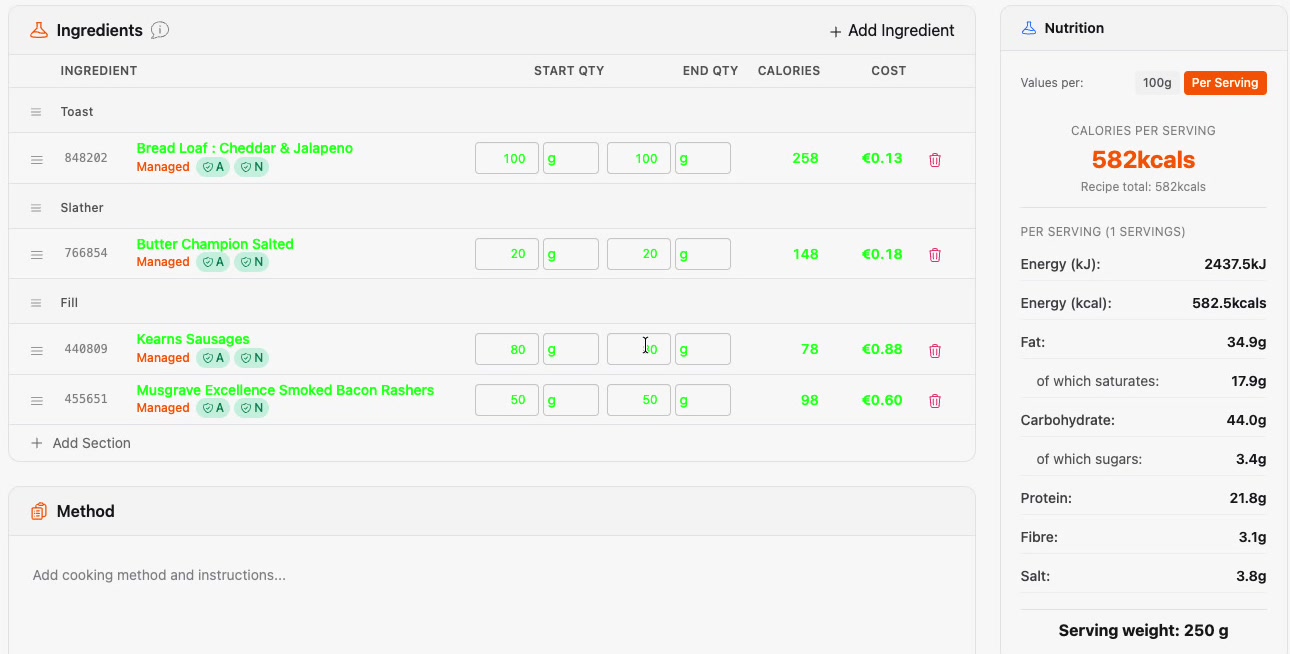
Step 5: Price it and check your margin
Set your Tax Rate (for example Hospitality Rate 9% — set these up first in tax rates), then either type a selling price or type a target food margin and let Prepsheets back-calculate the price for you.
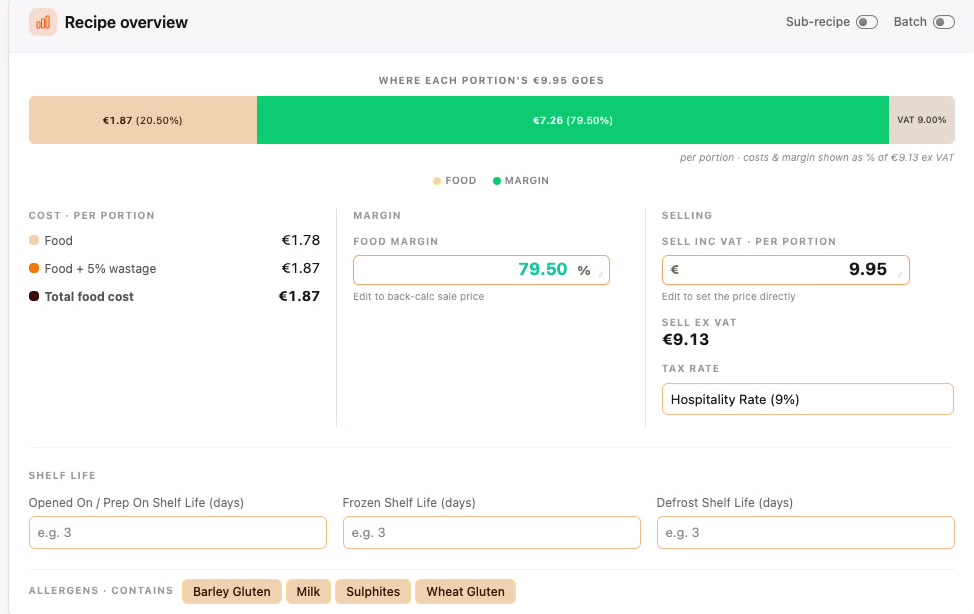
The bar shows exactly where each portion's price goes — food cost, VAT, and the margin you keep. Prepsheets shows your price both including and excluding VAT, and turns the margin green when it's above your alert threshold, so you can knock a price down to something like €9.95 and instantly see you're still safe.
Step 6: Add a photo, method and notes
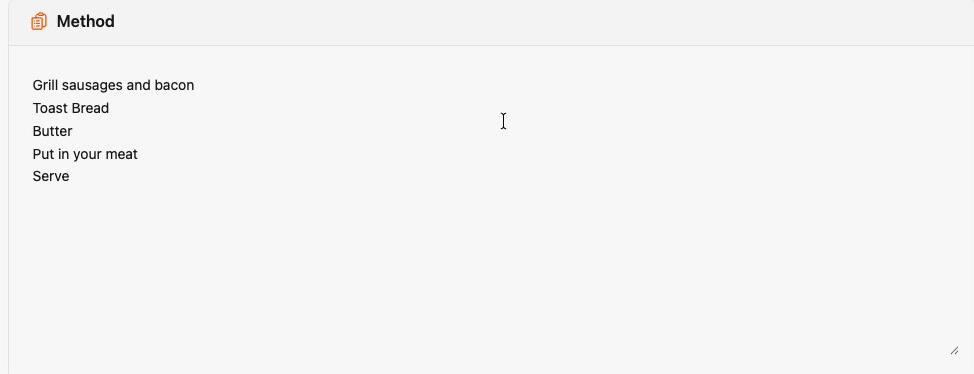
Drop in a cover photo, write your method and any notes (like which plates to use). The method is a great thing to draft in an AI tool like Claude and tighten into short steps.
Allergens are automatic
Prepsheets rolls up the allergens from your ingredients and shows what the finished dish contains — here barley and milk from the bread and butter, sulphites and wheat from the sausages.
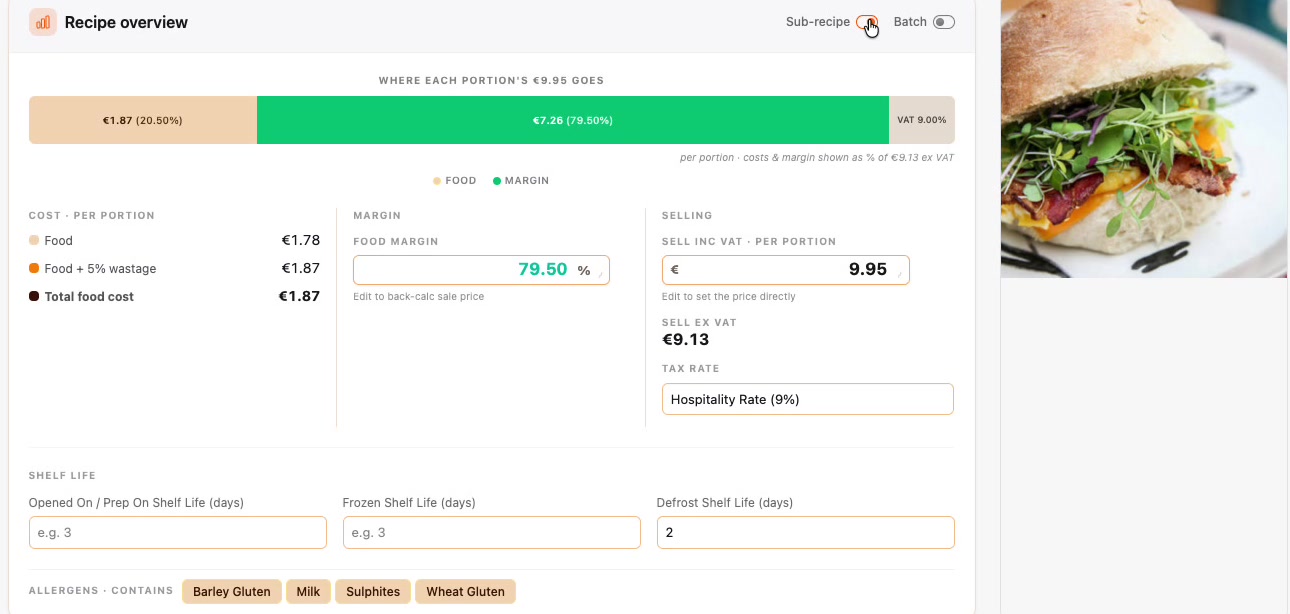
Here's the clever part: hover your mouse over any allergen and Prepsheets tells you exactly which ingredient (or ingredients) is bringing it in. Hovering Wheat Gluten here shows it comes from the Bread Loaf and the Kearns Sausages — so if you needed to make the dish wheat-free, you'd know precisely which two ingredients to swap.
