Help Centre › Ingredients
Add a Local Ingredient
Not everything you buy comes from a supplier catalogue. You might pick things up in Lidl or Aldi, or buy from a local honey farm or vegetable grower. Prepsheets handles these as local ingredients: you create the supplier, set the price, verify the allergens yourself, and pull nutrition from Open Food Facts or USDA — so even your local buys end up fully costed, labelled and compliant.
Step 1: Create the ingredient and its supplier
Go to Ingredients and click + New Ingredient.

- Give the ingredient a name at the top — you can't save it until it has one.
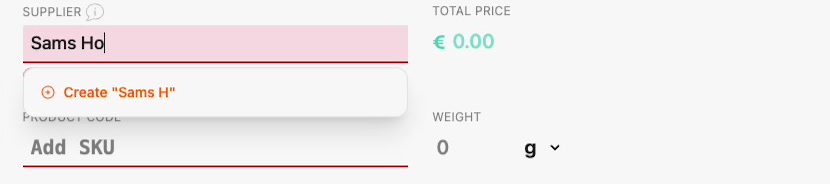
- In Supplier, type your supplier's name — say, Sams Honey, a local honey company. Since it doesn't exist yet, Prepsheets offers to create it on the fly — click Create "Sams Honey" and it's added instantly, no separate setup. The ingredient is automatically marked as a Local Ingredient.
- Enter the price you pay (€20), a product code, and the weight (1 kg).
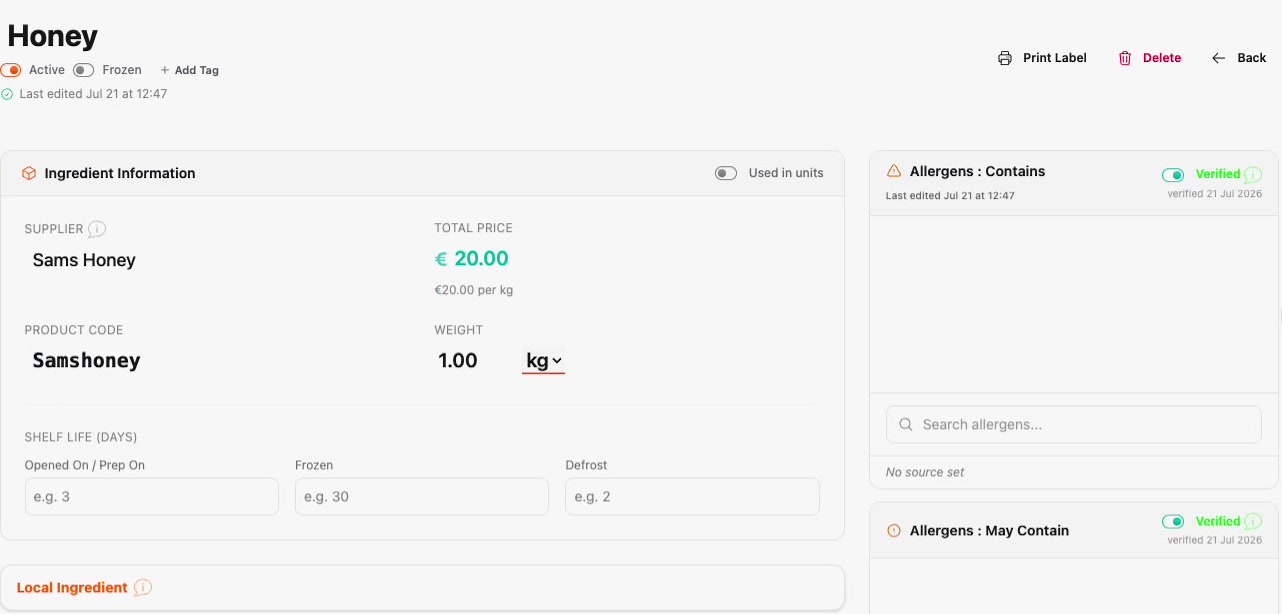
Your organisation's default shelf lives apply automatically, and you can override them here if this product needs its own — for example to match the spec sheet.
Step 2: Verify the allergens yourself
With a local ingredient, you're the one confirming what's in it:
- In Allergens : Contains, add any allergens — for honey there are none, so it can be verified as-is.
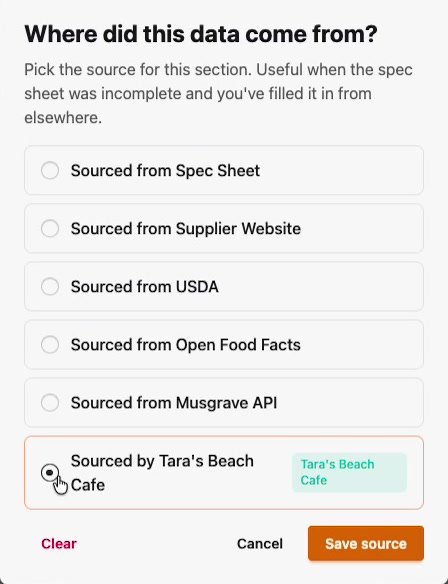
- Click the source (the little edit icon under the allergens) and record where the verification came from. Pick Sourced by Tara's Beach Cafe — your own organisation — and save.
- Do the same for Allergens : May Contain. Once a source is set, the section flips to a green Verified stamp with the date.
Step 3: Look up the nutrition
Your local supplier probably doesn't hand you a nutrition panel — so let Prepsheets find one:
- In Nutrition per 100g, click Lookup Nutrition Info.
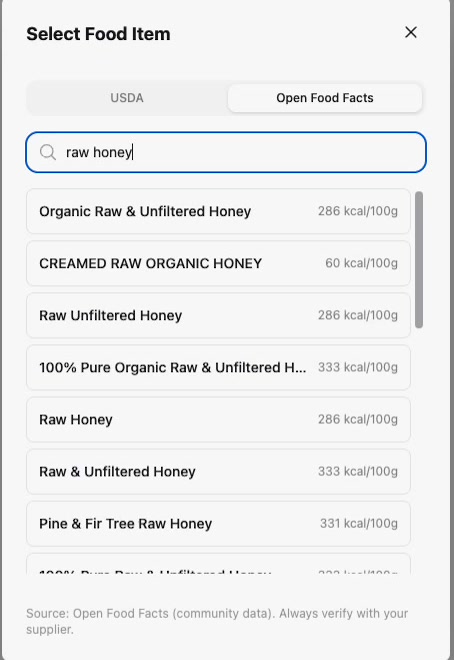
- Choose the USDA or Open Food Facts tab and search — e.g. raw honey. Prepsheets lists matching foods with their calories per 100g.
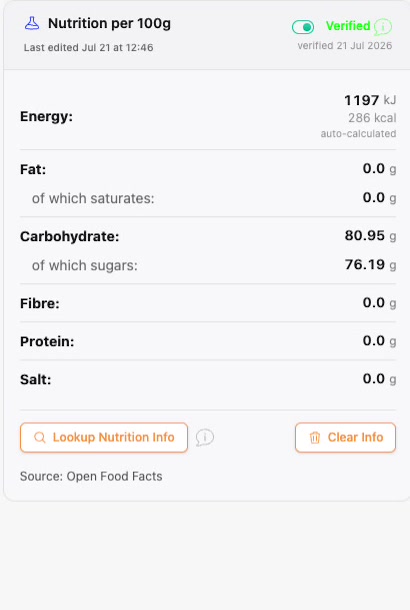
- Pick the closest match. The nutrition fills in per 100g and is automatically stamped Verified with its source — Source: Open Food Facts.
Step 4: Check the label details and save
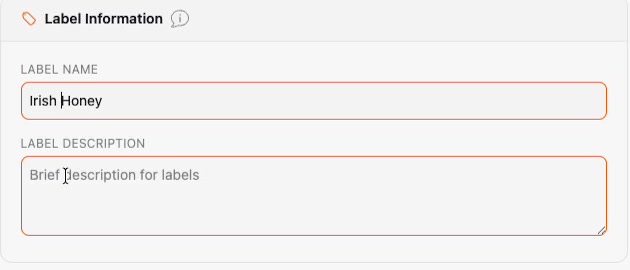
The Label Name comes from the ingredient's name automatically, and you can change it — write Irish Honey and that's exactly what prints on your labels. The Label Description is for the ingredient's own sub-ingredients, which print in brackets after the name; for 100% honey you can leave it empty so your labels don't get bulked up.
Click Save Ingredient — done.
Local and managed, side by side
Search your ingredients and both kinds sit together — the local one marked Local Supplier, the catalogue one Managed Supplier — each with its price per kg ready for costing: