Help Centre › Company Setup
Set Up Your VAT / Tax Rates
Prepsheets uses your tax rates to work out the real margin on every recipe. New accounts start with no rates set, so this is one of the first things to do — otherwise a recipe's selling price won't reflect the VAT or tax you actually have to include in it. You add each rate once, then apply it to any recipe.
Why do I need to set up tax rates?
When you price a dish, part of the selling price is VAT or tax (whatever it's called where you are) that goes to the tax authority in your jurisdiction, not margin you keep. Until you tell Prepsheets your rates, it can't separate the two — so your margin figures will look higher than they really are. Setting your rates makes every recipe's cost, tax and margin breakdown correct.
How do I add a tax rate?
- Go to Settings and open Tax Rates.
- Click + New Tax Rate.
- Give it a Name and a Rate (%), then click Save Tax Rate.
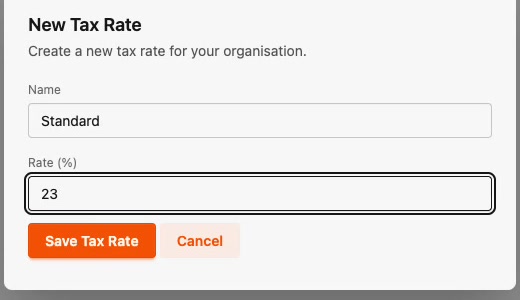
Add one rate for each band your business uses. For an Irish hospitality business that's typically:
- Hospitality Rate — 9%
- Standard Rate — 23%
- Zero / cold takeaway food — 0%
- Reduced Rate — the reduced band where it applies

How are tax rates used?
Once your rates exist, each recipe has a Tax Rate selector in its overview. Pick the right band and Prepsheets recalculates the split between tax and margin, and shows both your tax-inclusive and tax-exclusive selling price. See creating and costing a recipe for how this plays out.