Help Centre › Company Setup
Your Suppliers
The Suppliers page lists every supplier you buy from, shows how many ingredients each one gives you, and lets you store each supplier's contact details. Those details are used for online-ordering integrations — and are handy to keep on file for reference even if you don't order online. Suppliers are either managed (Prepsheets keeps their data current) or local (you maintain them yourself).
Viewing your suppliers
Go to Settings and open Suppliers. Each row shows the supplier, its type, the number of ingredients you have from it, and its contact details.
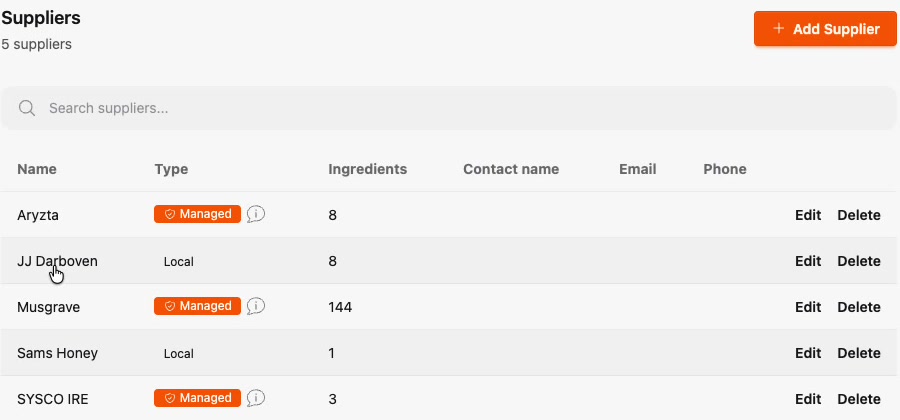
- Managed suppliers (like Musgrave or Aryzta) — Prepsheets looks after the allergen, nutrition and product data for you.
- Local suppliers (like a local honey farm) — you enter and verify the data yourself. See adding a local ingredient.
Adding a supplier's contact details
Click Edit on any supplier to open its record and fill in:
- Contact name, Email and Phone — your rep's details, used when Prepsheets sends orders through an online-ordering integration, or simply for your own reference.
- Notes — anything useful about the supplier, like delivery days or account numbers.
- Is active — keep the supplier active, or untick to retire one you no longer use.
You can add these details to both kinds of supplier — the difference is only in the name field:
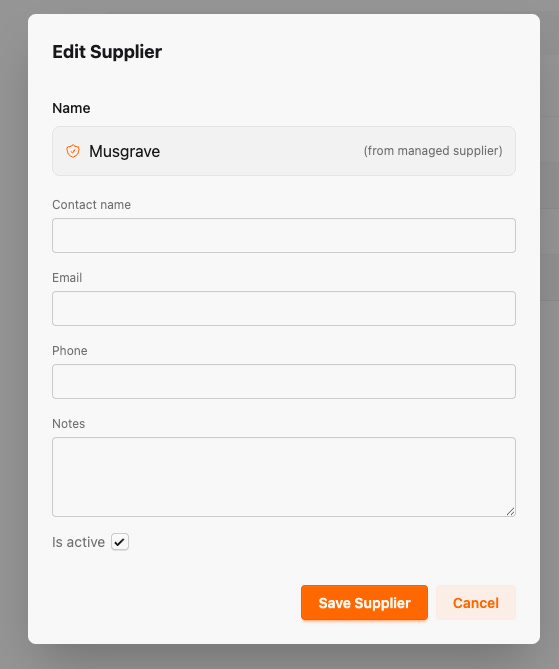
- Managed supplier — the name is locked (marked from managed supplier) because Prepsheets maintains it. But the contact name, email, phone and notes are yours to fill in — your rep, your account details, specific to your business.
- Local supplier — you can edit everything, including the name, since it's your own record.
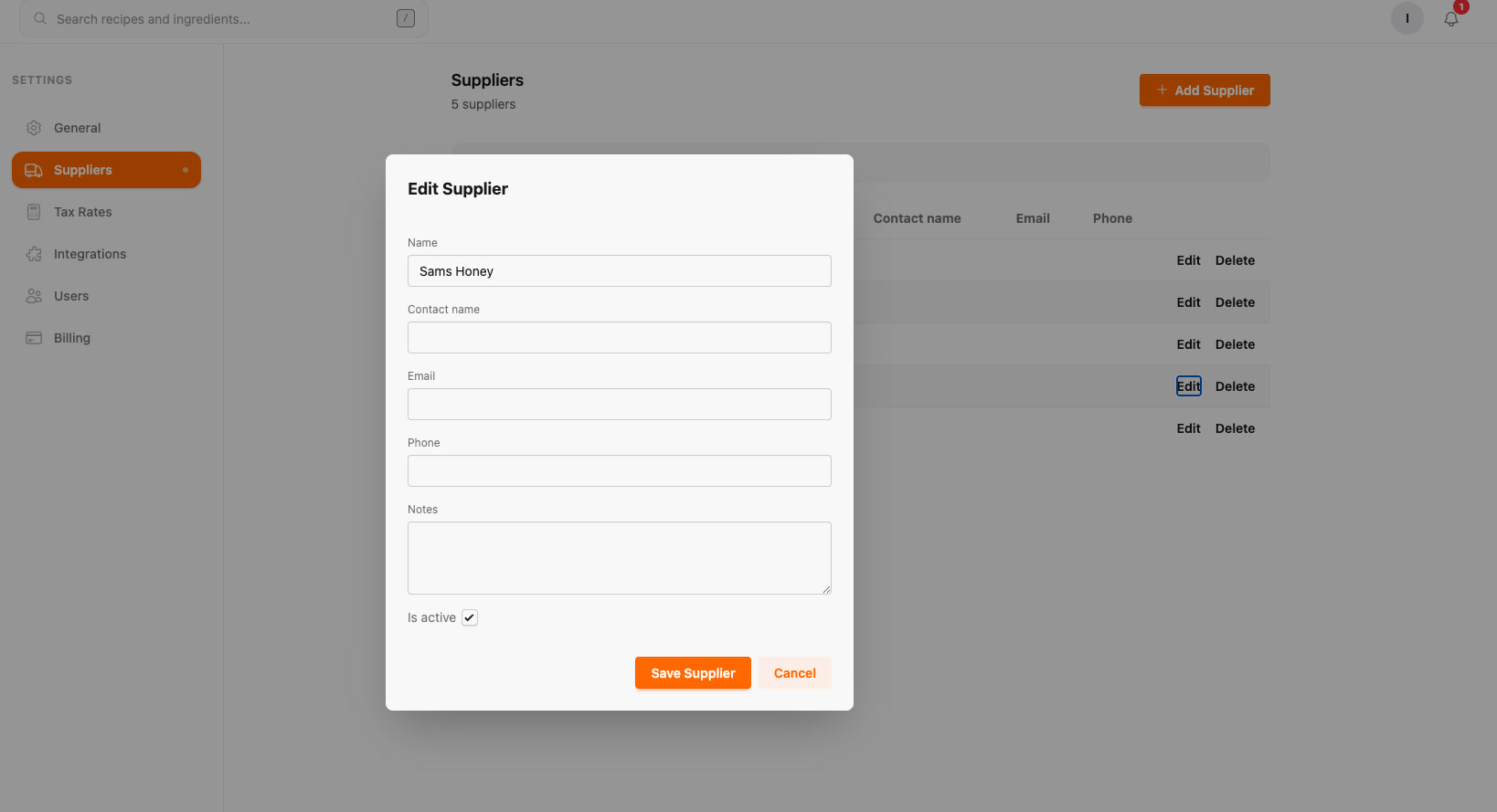
Click Save Supplier when you're done. Use + Add Supplier on the Suppliers page to create a new local supplier from scratch.