Help Centre › Ingredients
Bulk Upload Supplier Ingredients by CSV
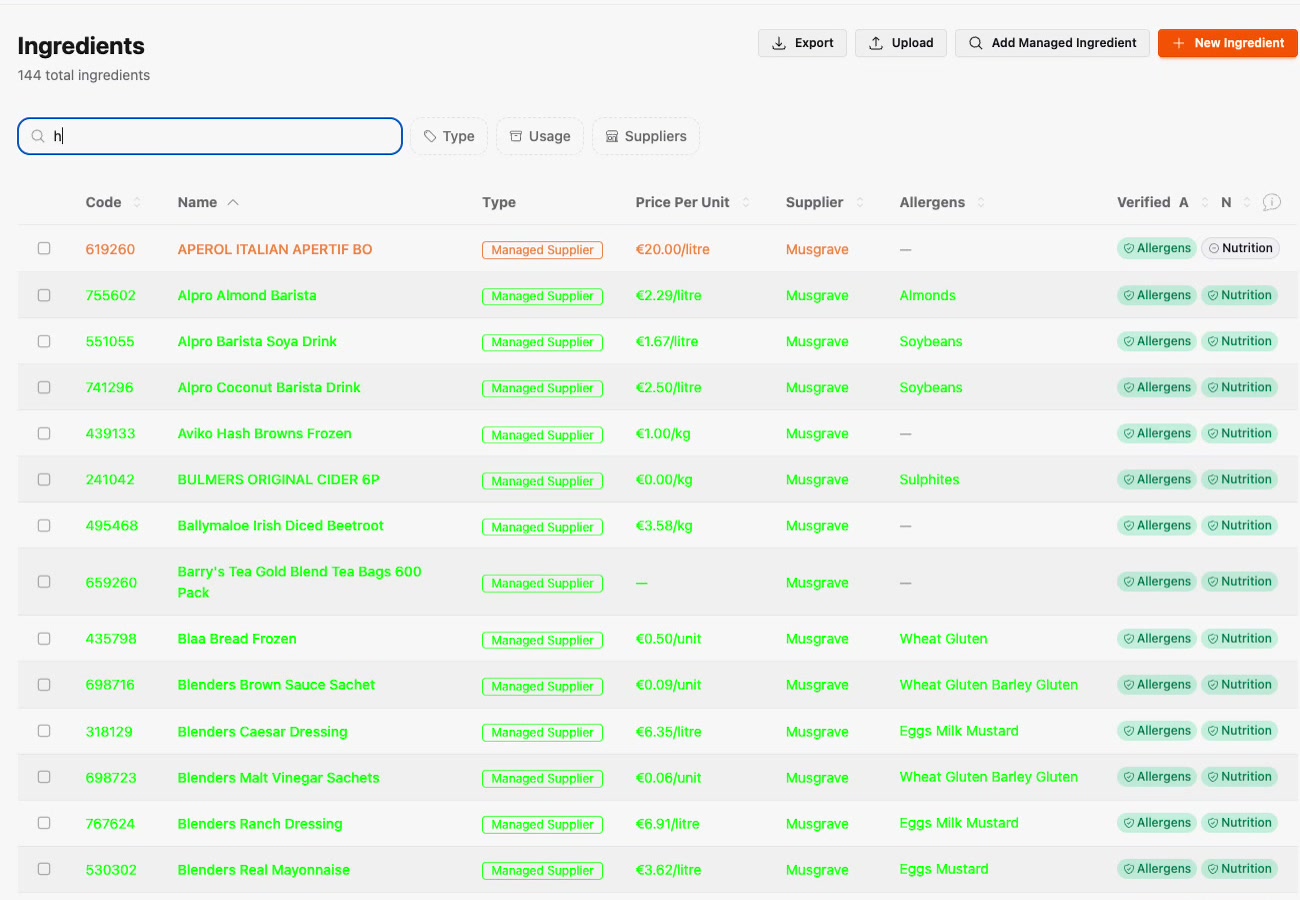
The fastest way to fill your Prepsheets database is a bulk CSV upload. You only need two things from your supplier's price file — the product code and the price you pay. Prepsheets fills in everything else from the managed database: product descriptions, sub-ingredients, allergens (contains and may contain), nutritional values, and any spec sheets on file.
Step 1: Open Bulk Import for your supplier
- Go to Ingredients and click Add Managed Ingredient (or use Manage Ingredients from your dashboard).
- Choose your supplier — Musgrave in this example, but the same works for any supplier in the managed database.
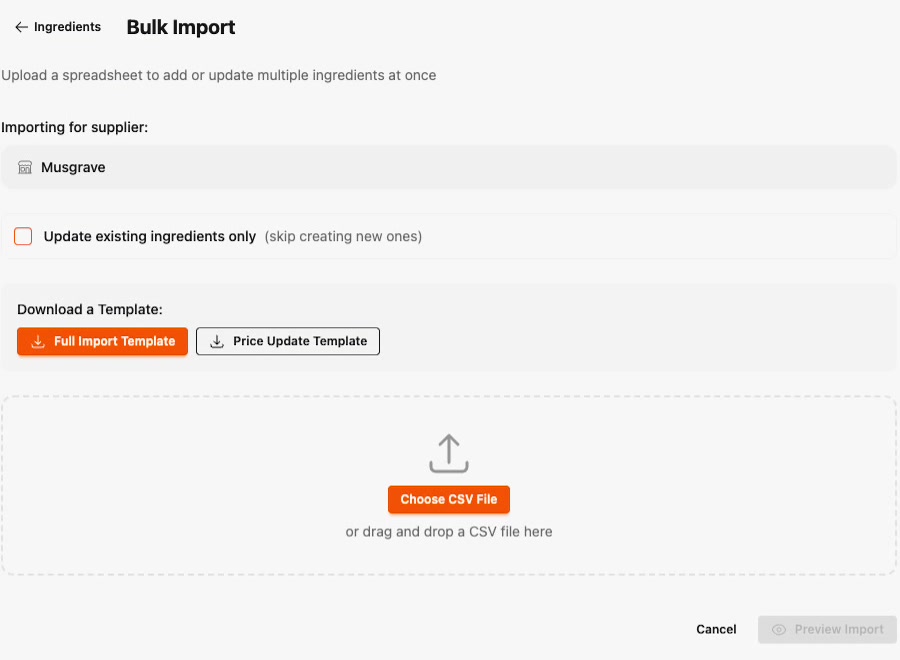
- Click Upload CSV. You'll land on the Bulk Import screen.
Step 2: Download the right template
There are two templates, and picking the right one matters:
- Price Update Template — for managed suppliers or ingredients already in your system. Just product code and price; Prepsheets supplies the rest. This is the one this guide uses.
- Full Import Template — for non-managed suppliers, where you provide the full ingredient details yourself.
Step 3: Fill in product codes and prices
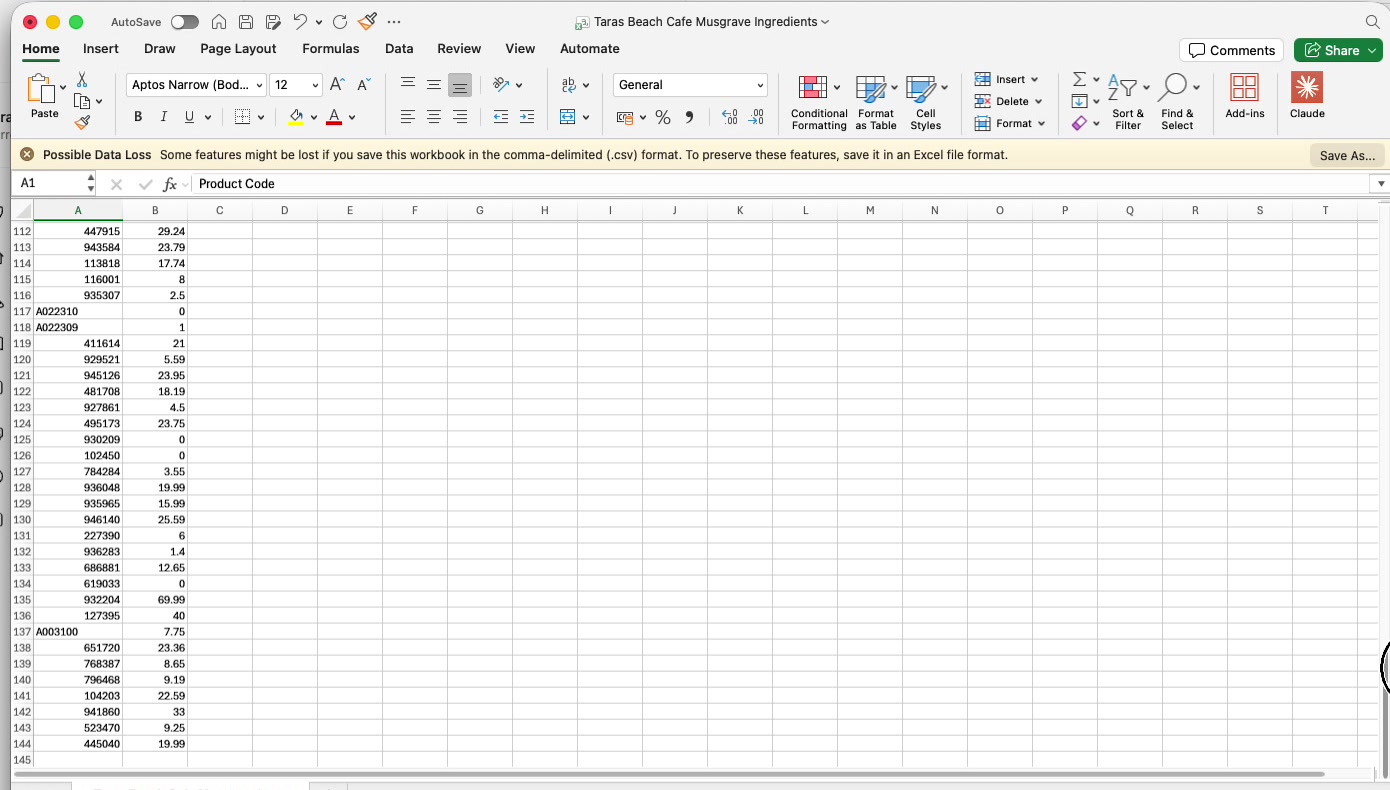
Open the template — Row 1 is the header, and it's simply two columns: Product Code and Price. From Row 2 down, add one row per product from your supplier's price file — the code and the price you pay — then save it as a CSV.
Step 4: Upload and preview
Back on the Bulk Import screen, choose your CSV file or drag and drop it in, then click Preview Import. Nothing is saved yet — this is your chance to review.
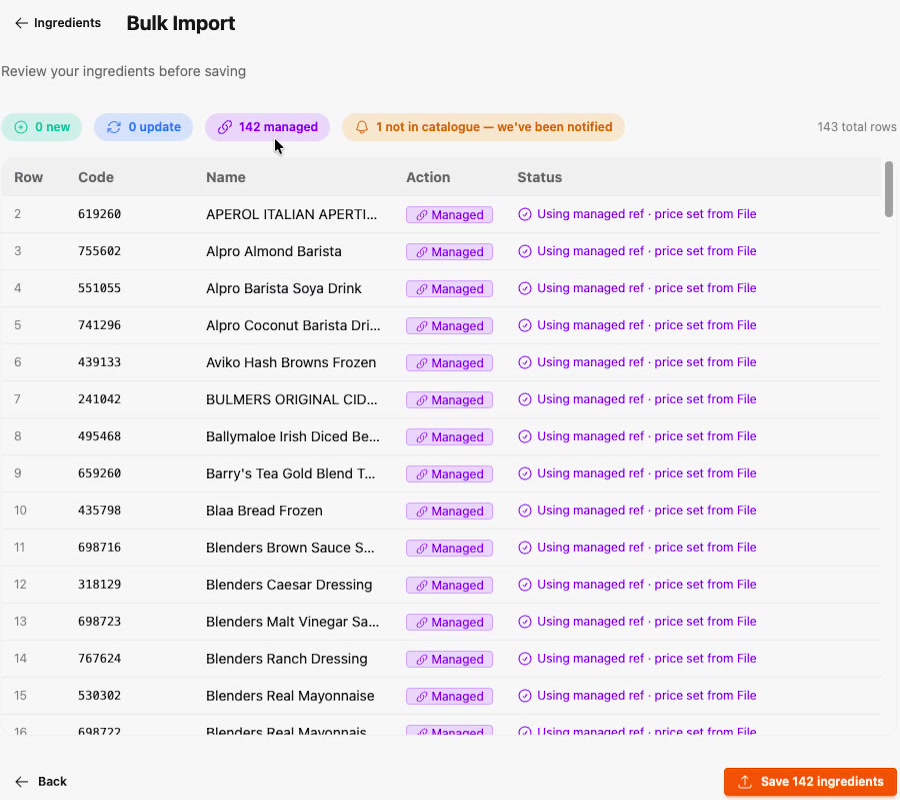
The summary badges tell you exactly what's about to happen: how many are new, updates, managed matches — and whether any codes were not found in the catalogue.
What if a product code isn't found?
Any row that doesn't match the supplier directory is highlighted and marked Notified — and that's exactly what happens: Prepsheets is automatically told about the missing code.
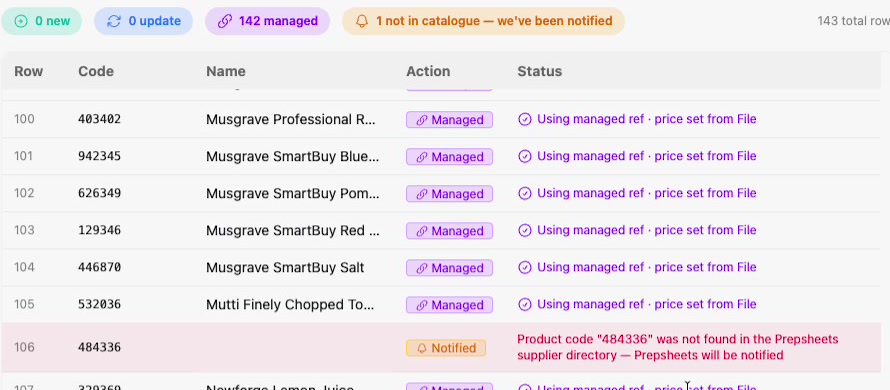
- Click Save ingredients — everything that matched imports normally.
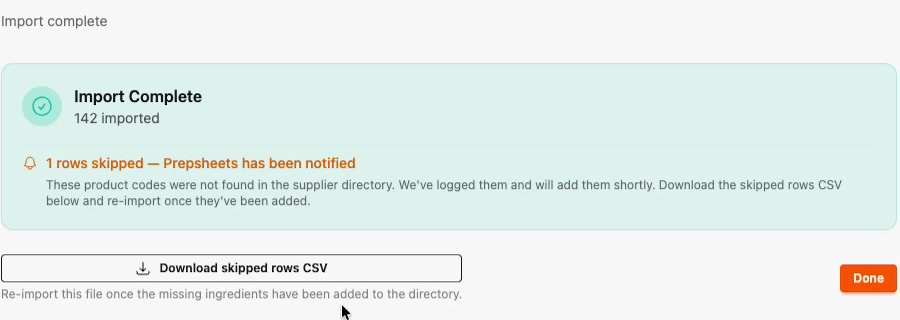
- On the completion screen you can Download the skipped rows CSV for your records.
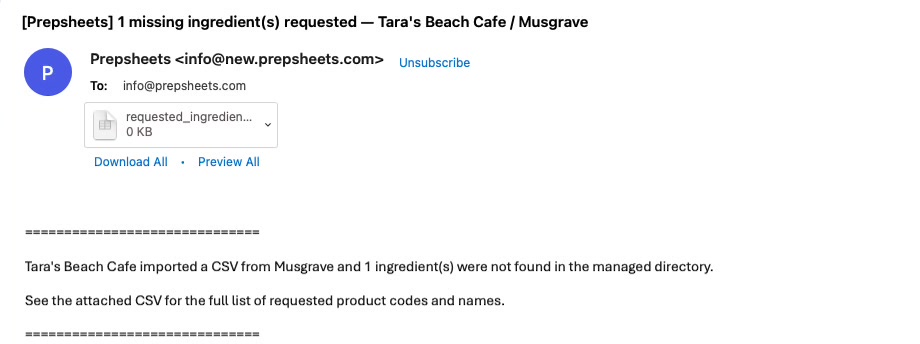
- The Prepsheets team looks up the missing products and adds them to the directory — you'll get an email confirming what was requested, and you can re-import the skipped file once they've been added.
The result: a full database in minutes
That's 142 ingredients imported from one small CSV — each arriving with its description, allergens and nutrition already attached from the managed database.